
After your first login to the Insights platform, you are presented with three paths to get started. These paths are meant to help you begin in the way that best fits your needs.
Once you complete a path, you are taken into the Insights Dashboard, where you can continue configuring additional options whenever you’re ready.
Available Paths at First Login
- Connect SaaS Integrations
- Download Collector Tools
- Load Demo Data
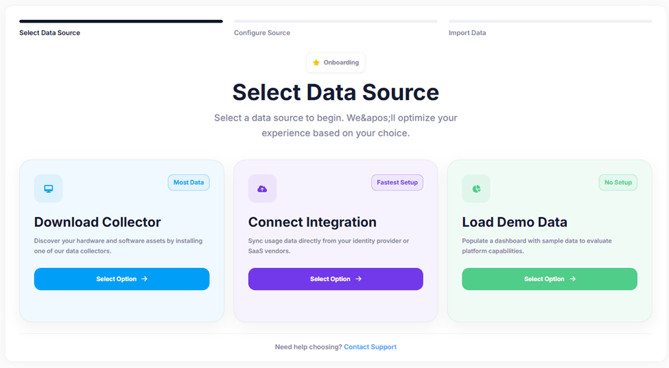
Each path is independent and includes a brief configuration flow, outlined below.
Path A: Connect SaaS Integrations
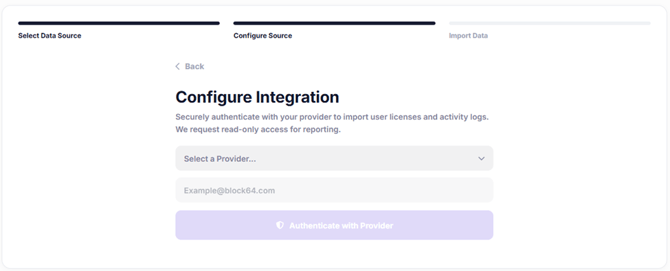
When selecting Connect Integration, you are guided through the initial SaaS connection flow.
Configure Integration
- The Integration dropdown allows you to select Microsoft 365 as the first connection.
- This initial connection is required to bootstrap SaaS data ingestion.
Important:
Once you are in the Insights platform, you can add more SaaS integrations at any time from the Integrations section.
Path B: Download Collector Tools
When selecting Download Collector, you are guided to the Choose a Collector screen. From here, you can select one of three available collector options, depending on your environment and discovery needs.
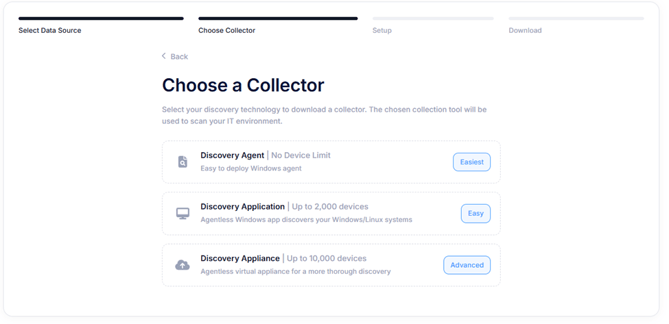
If you need help selecting the right collector, you can use our Discovery Tool Selection Guide. This guided resource helps you identify the best tool based on your environment, scope, and assessment needs.
Discovery Agent Setup
A lightweight agent installed directly on Windows endpoints.
Recommended when you want simple deployment and endpoint-level inventory.
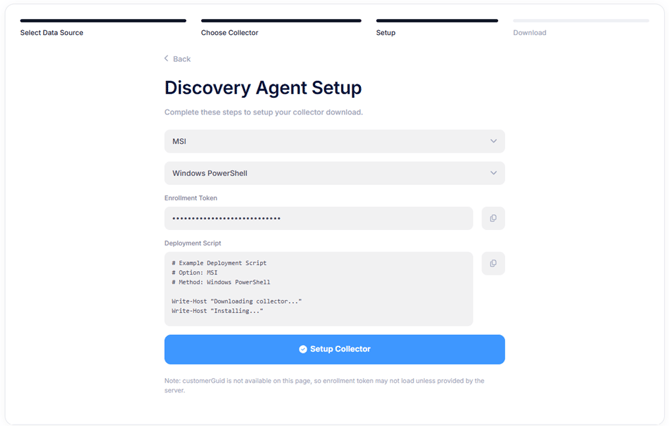
When choosing Discovery Agent, you will see the following configuration options:
Installer Type
- MSI (Recommended)
- EXE
Use the option that best fits your deployment tooling and endpoint management strategy.
Deployment Method
- Windows PowerShell
- GPO
- SCCM
- Intune
- ESET
The selected option determines how the agent will be deployed across endpoints.
Enrollment Token
- The Enrollment Token field is read-only and can be copied but not modified.
- This token uniquely associates deployed agents with your Insights tenant.
Deployment Script
- The PowerShell (.ps1) Deployment Script field updates dynamically.
- Its content changes automatically based on the selected Deployment Method.
- Copy and use the script exactly as shown for successful deployment.
Discovery Application
A Windows-based, agentless application used to scan and collect inventory data across the network. Recommended when you want centralized discovery without installing agents or deploying a virtual appliance.
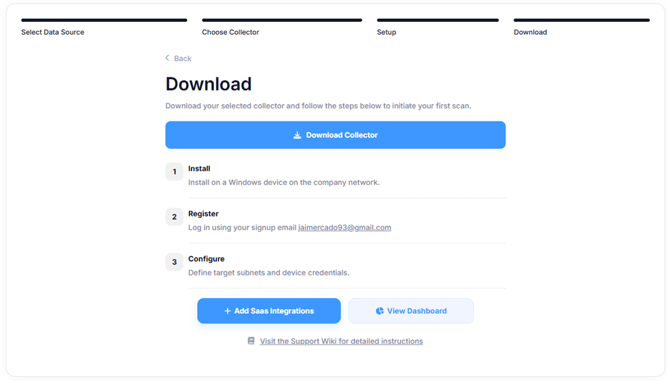
This screen completes the process of downloading and activating the selected collector.
- Download Collector
Downloads the installer for the selected collector to initiate the first scan. - Install
Install the collector on a Windows device within the company network. - Register
Log in using the email address used to register in Insights to associate the collector with your tenant. - Configure
Define the target subnets and required device credentials so the collector can discover and inventory devices.
You can find a comprehensive configuration guide for the Discovery Application here.
Once these steps are completed, you can:
- Add SaaS integrations to complement the inventory data
- Or select View Dashboard to start reviewing the generated insights
Discovery Appliance Setup
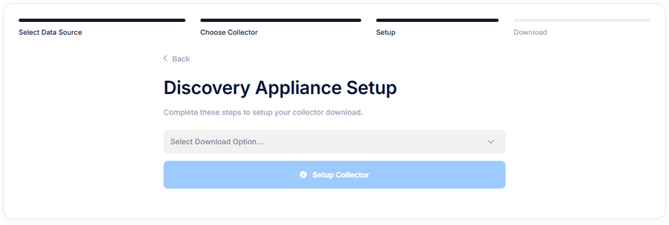
A virtual appliance designed for large-scale, network-based discovery.
Recommended for broader environments or when scanning a large number of devices.
When choosing Discovery Appliance, the deployment options are:
Hypervisor Type
Select the hypervisor that matches your virtual infrastructure. The download instructions adjust accordingly.
You can find a comprehensive configuration guide for the Discovery Appliance here.
Path C: Load Demo Data
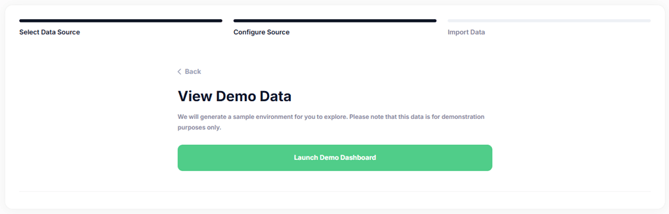
Selecting Load Demo Data provisions a demo customer account with preloaded sample data.
This option requires no setup and is ideal for quickly exploring the platform, running demos, or enabling internal teams.
Partner Note:
Partner users without a customer tenant must load demo data to access dashboards and reports.
After Completing Any Path
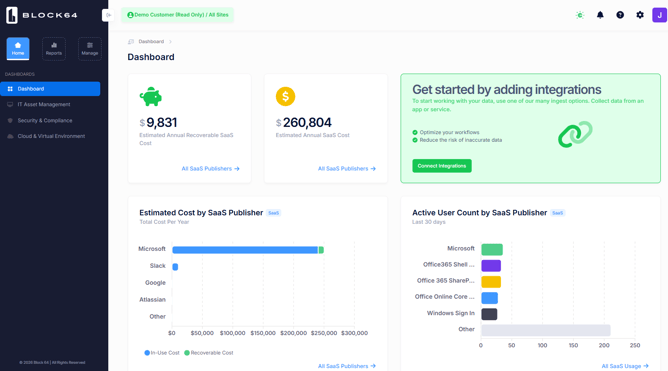
After completing any of the above paths, you are redirected to the Insights Dashboard.
From there, you can at any time:
- Connect additional SaaS integrations
- Download and deploy collector tools
- Switch between demo and real customer accounts
This flexibility allows you to continue your onboarding at your own pace, expanding visibility and insights as your needs evolve.