
Overview
The Dropbox integration allows Block 64 to securely collect usage and license-related data from your Dropbox team environment using OAuth 2.0 authentication. This integration helps organizations understand Dropbox adoption, user status, and license utilization across the team.
Customers do not need to create an OAuth app or generate client credentials. Block 64 uses its pre-configured Dropbox application to authorize access.
Once connected, Dropbox data will be available under:
Reports → SaaS → Usage
This report provides visibility into Dropbox team usage and license activity.
The Credentials Needed for This Integration
To complete the connection, you only need:
-
A Dropbox Admin account with permission to authorize third-party applications.
No API keys, Client IDs, or Client Secrets are required.
How to Add This Integration
-
In the Block 64 Insights portal, navigate to Integrations → Dropbox.
-
Click Connect to Dropbox.
-
You will be redirected to Dropbox.
-
Sign in using a Dropbox Admin account.
-
Review and approve the requested permissions to grant Block 64 access.
After authorization, the integration will show as Active, and Dropbox usage data will begin syncing into Block 64.
Why Is This Integration Failing?
Common reasons include:
-
Non-admin account used – The account authorizing the connection must be a Dropbox admin.
-
Authorization not completed – The OAuth consent flow was canceled or closed.
-
Access revoked – The Block 64 app was removed from the Dropbox admin console.
-
SSO or security restrictions – Organization policies may block third-party OAuth access.
How to Fix Issues
-
Reconnect using a Dropbox Admin account.
-
Complete the OAuth authorization when redirected to Dropbox.
-
Verify the Block 64 app is still authorized in Dropbox settings.
How to Remove This Integration
From Block 64:
You can disable this integration temporarily by clicking on the Enable switch in the integration.

Alternatively, you can disconnect the integration entirely by clicking on the Disconnect button.
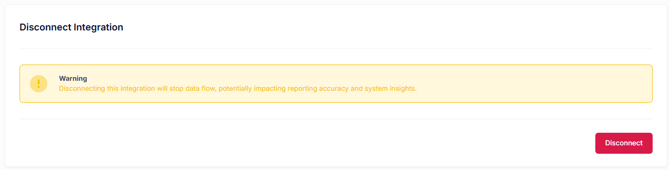
⚠️ Disconnecting will stop all Calendly usage data collection and reporting.
From Dropbox:
-
Sign in to Dropbox Admin Console.
-
Navigate to Settings → Apps (or Connected Apps).
-
Locate Block 64.
-
Revoke or remove access.
Security & Privacy
-
All access is read-only — Block 64 cannot modify, delete, or manage files or users.
-
Only usage and license metadata is collected; file contents are never accessed.
-
Data is retrieved using the official Dropbox Team API via OAuth 2.0 authentication.
-
Data is refreshed during each sync cycle to reflect the latest state of the Dropbox team.
-
Permissions can be reviewed or revoked at any time from the Dropbox Admin Console.