
Overview
The KnowBe4 connection in Block 64 enables secure, read-only access to security awareness training data from your organization's KnowBe4 account. KnowBe4 is a security awareness training and simulated phishing platform used to educate users and reduce human risk.
This integration collects data about your organization's KnowBe4 account, including active user seats, group memberships, and training completion status. It provides visibility into security awareness adoption across your organization and helps identify users who may need additional training attention.
Once connected, the data collected from this integration appears in the following Block 64 Insights reports:
-
Reports → IT Asset Management → SaaS → Usage – Displays total and active KnowBe4 users, along with a per-product breakdown showing product name, category, and active user counts. Individual products can be selected to drill down into user-level detail, and results can be exported to CSV.
- Reports → IT Asset Management → SaaS → Licensing – Displays the estimated cost of licenses, unassigned cost, and recoverable cost for your KnowBe4 subscription, along with a per-license breakdown of entitled, assigned, unassigned, and recoverable quantities and their associated costs. This helps identify unused seats that can be reclaimed at renewal. Results can be exported to CSV.
The Credentials Needed for This Integration
To set up this integration, you'll need:
- A KnowBe4 subscription on a Silver, Gold, Platinum, or Diamond plan.
- A Reporting API key, generated by a KnowBe4 account administrator.
- Your KnowBe4 data center region, the region where your KnowBe4 account is hosted (for example, us for the United States, eu for the European Union, or ca for Canada). Your region can be identified from the URL you use to sign in to KnowBe4 (for example, eu.knowbe4.com indicates the EU data center; training.knowbe4.com indicates the US data center).
Create a KnowBe4 Reporting API Key
- Sign in to your KnowBe4 admin console as an account administrator.
- Click your email address in the top-right corner and select Account Settings.
- Navigate to Account Integrations → API.
- Under Reporting API, enable the Reporting API if it is not already enabled.
- Copy the API key (token) displayed and store it securely.
Note: Only KnowBe4 account administrators can view and manage API keys. If the Reporting API section is not visible, verify that your subscription level includes Reporting API access or contact KnowBe4 support.
How to Add This Integration
- In the Block 64 Insights portal, navigate to Integrations → KnowBe4.
- In the Data Center Region field, enter the region code for your KnowBe4 account (for example, us, eu, or ca).
- In the API Key field, paste the Reporting API key generated in KnowBe4.
- Ensure the Integration Connection toggle is set to Enabled.
- Click Connect to finalize setup.
Once the integration is connected and synced, KnowBe4 seat and training data will begin appearing in your Insights reports.
Tip: The Integration Connection toggle lets you enable or disable data collection at any time without deleting your integration credentials.
Why Is This Integration Failing?
If the integration isn't working, it's usually caused by:
- Invalid API key – The API key entered may be incorrect, or it may have been regenerated or disabled in KnowBe4 without being updated in Block 64.
- Incorrect data center region – The region code entered does not match the data center where your KnowBe4 account is hosted, so API requests cannot reach your account.
- Reporting API not available – Your KnowBe4 subscription level does not include Reporting API access, or the Reporting API has not been enabled in Account Settings.
- Integration disabled – The Integration Connection toggle is set to Disabled, pausing data collection.
To fix this:
- Verify the API key in KnowBe4 under Account Settings → Account Integrations → API and, if it was regenerated, update it in Block 64 and click Connect again.
- Confirm the data center region code matches your KnowBe4 sign-in URL (for example, accounts on eu.knowbe4.com must use eu).
- Verify that the Reporting API is enabled for your account and included in your subscription level.
- Verify that the Integration Connection toggle is set to Enabled in the Block 64 Insights portal.
How to Remove This Integration
From Block 64:
You can disable this integration temporarily by clicking on the Enable switch in the integration. This pauses data collection without deleting your integration credentials.
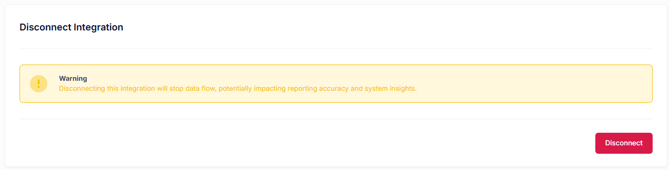
Alternatively, you can disconnect the integration entirely by clicking on the Disconnect button.

To permanently remove all collected data, click Delete Data under Delete Integration Data.
⚠️ This cannot be undone — all collected data for this integration will be permanently removed, and the integration will be disconnected.
From Notion:
- Sign in to your KnowBe4 admin console as an account administrator.
- Go to Account Settings → Account Integrations → API.
- Under Reporting API, regenerate the API key (to invalidate the key used by Block 64) or disable the Reporting API entirely.
Security & Privacy
All access is read-only. Block 64 cannot create, modify, or delete users, groups, campaigns, or any other data in your KnowBe4 environment.
Only metadata relating to user seats, group memberships, and training completion is collected, simulated phishing results, individual test answers, and campaign contents are never read or stored.
Data is handled in compliance with Block 64's Privacy Policy and KnowBe4's Terms of Service.