
Overview
The Calendly integration allows Block 64 to securely collect usage data from your Calendly organization. This connection provides visibility into scheduling activity and adoption trends, helping organizations better understand how Calendly is being used across teams.
Once connected, Calendly data will appear in:
Reports → SaaS → Usage - This report provides insight into Calendly usage across your organization.
The Credentials Needed for This Integration
To connect Calendly with Block 64, you will need:
-
Calendly Admin Email — An email address associated with a Calendly admin account.
How to Add This Integration
-
In the Block 64 portal, go to Integrations → Calendly.
-
Enter the Calendly Admin Email associated with your organization.
-
Click Connect.
-
You will be redirected to Calendly to complete the OAuth authorization flow using Block 64’s app.
-
Review and approve the requested permissions to grant Block 64 access.
After authorization, the integration will show as Active, and Calendly usage data will begin syncing into Block 64.
Why Is This Integration Failing?
Common reasons include:
-
Incorrect admin email — The email entered must belong to a Calendly admin.
-
Authorization not completed — The OAuth consent flow was closed or canceled.
-
Access revoked — The Block 64 Calendly app was removed from the Calendly account.
-
Insufficient permissions — The account used does not have admin-level access.
How to fix this:
-
Reconnect using a valid Calendly admin account.
-
Complete the OAuth authorization when redirected to Calendly.
-
Verify that the Block 64 app is still authorized in Calendly settings.
How to Remove This Integration
From Block 64:
You can disable this integration temporarily by clicking on the Enable switch in the integration.

Alternatively, you can disconnect the integration entirely by clicking on the Disconnect button.
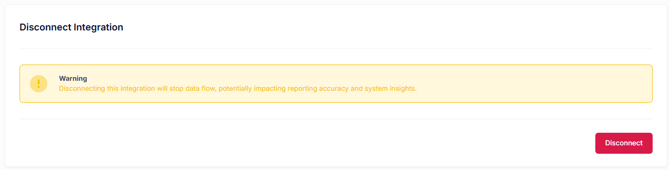
⚠️ Disconnecting will stop all Calendly usage data collection and reporting.
From Calendly
-
Log in to Calendly as an admin.
-
Go to Account Settings → Integrations / Connected Apps.
-
Locate the Block 64 app.
-
Revoke or remove access.