
Purpose: Enable the Windows Remote Management (WinRM) protocol on endpoints so that the Block 64 Discovery Appliance/ Inventory process can perform full endpoint inventory via WinRM.
Scope: Applies to domain-joined Windows machines (Windows 10/11, Windows Server 2016/2019/2022).
Prerequisites:
-
Endpoints must be reachable on the network, DNS resolution working.
-
Required firewall ports open: TCP 5985 (HTTP) and/or TCP 5986 (HTTPS).
-
You must have rights to create or edit GPOs in the target OU, or local admin rights if doing manual.
-
Ensure that the WinRM service exists (it is installed by default on modern Windows OSes).
Enable WinRM via Group Policy (recommended for domainwide rollout)
-
On your domain controller, open Group Policy Management.
-
Create a new GPO (e.g., “Block 64 – WinRM Enablement”) and link it to the OU containing the target machines.

-
Edit the GPO:
-
Navigate to Computer Configuration → Policies → Administrative Templates → Windows Components → Windows Remote Management (WinRM) → WinRM Service.

-
Double-click Allow remote server management through WinRM → set to Enabled. Under IPv4 / IPv6 filter, enter the IP of the Appliance (or the server hosting the Discovery App). Alternatively, you may use
*to allow all addresses (less secure). For example, the policy would look like this:-
IPv4 filter: IP address of the Appliance, or use
* -
IPv6 filter: (leave empty if you do not use IPv6, or use
*)
-

-
-
Still in the GPO, now start the service:
-
Navigate to Computer Configuration → Preferences → Control Panel Settings → Services. Right-click → New → Service.

-
Then, set the new service with the following parameters:
-
Service name:
WinRM -
Startup type: Automatic (or Automatic (Delayed Start))
-
Action: Start the service
-

-
-
Firewall inbound rule:
-
Navigate to Computer Configuration → Policies → Windows Settings → Security Settings → Windows Defender Firewall with Advanced Security → Inbound Rules.
-
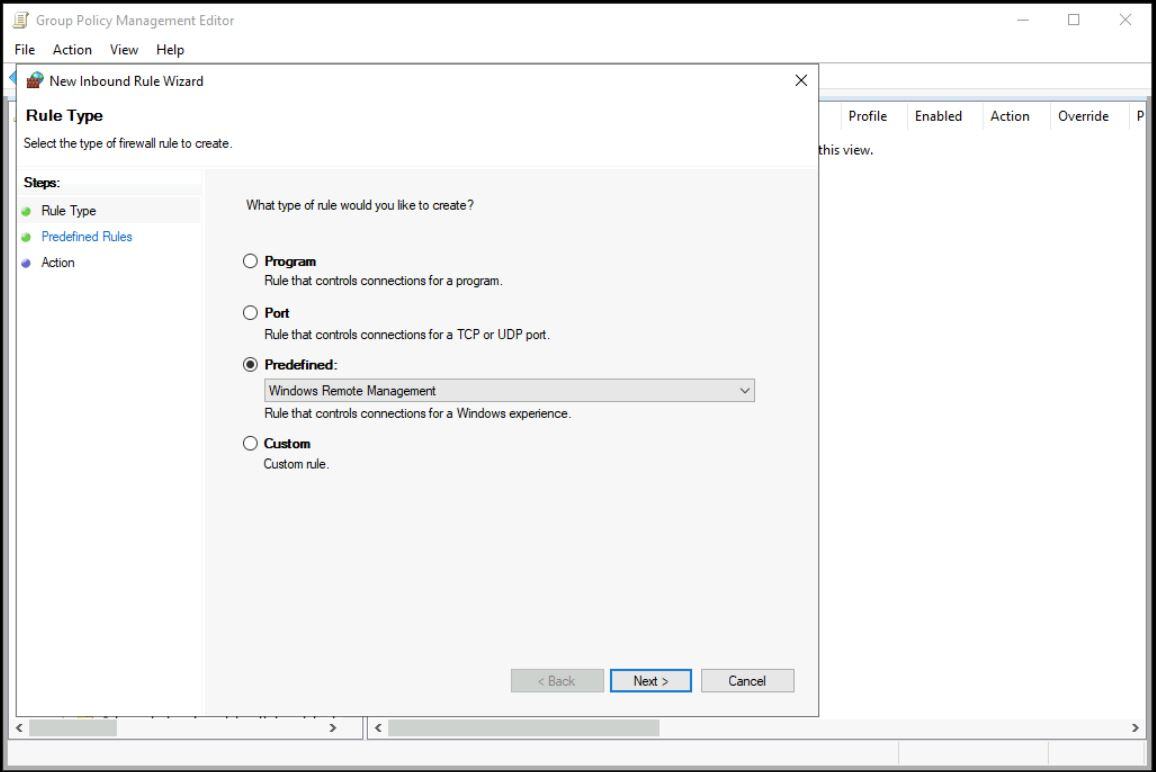
Right-click Inbound Rules → New Rule →

-
Select Predefined → Windows Remote Management. → Next.
-
- Then uncheck the Public profile (so only Domain and Private are allowed) → Next.
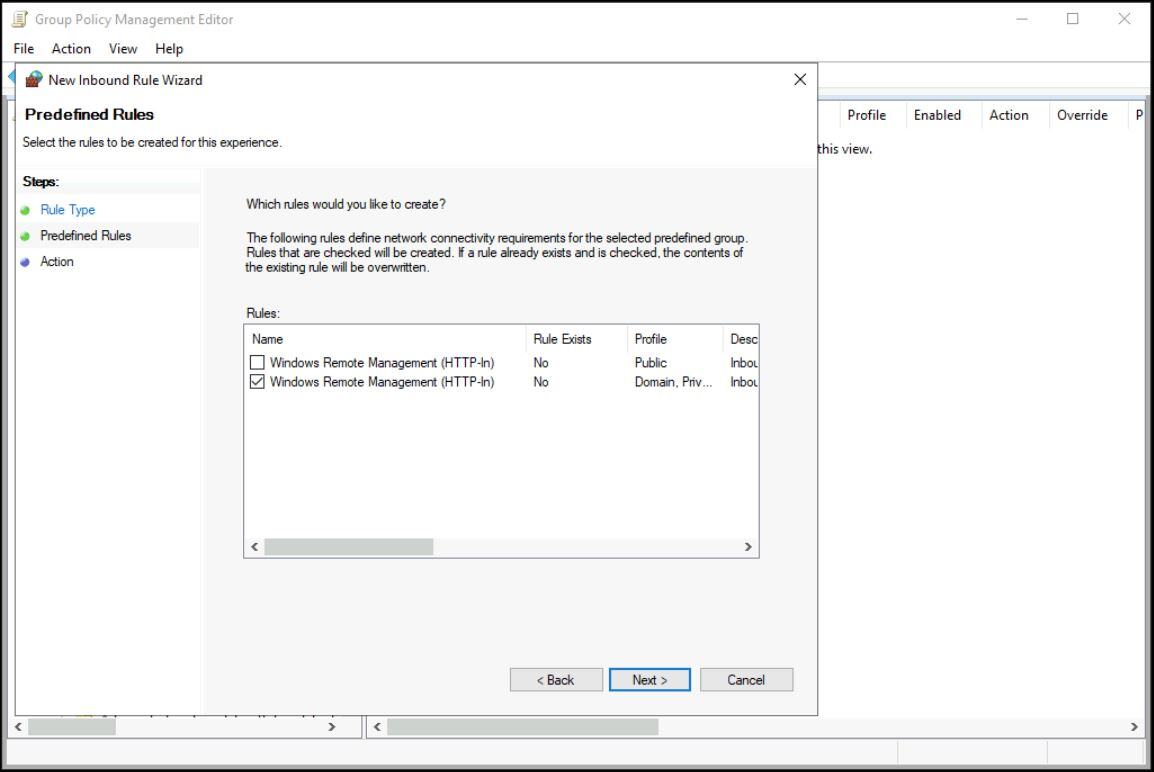
- Ensure Allow the connection is selected → Finish

-
That's it. Ensure the policy is linked and scopes correctly; wait for GPO propagation or force it with
gpupdate /forceon a test machine. -
(Optional) Verification: On a target machine run in an elevated PowerShell or Command Prompt:
Test-WSMan -ComputerName localhost

winrm enumerate winrm/config/listener

Get-Service -Name WinR
You should see a listener configured (e.g.,Transport = HTTP,Address = *) and the service in "Running" state.
Enable WinRM Manually on a Single Endpoint
This option is useful when you have just a few machines to enable, or you cannot apply a GPO yet.
-
Log into the endpoint as local administrator (or domain admin) and open Command Prompt (Admin) or PowerShell (Admin).
-
Run:
winrm quickconfigThe command will prompt: “Make these changes [y/n]?”. Type
yand enter. This will start the WinRM service, set startup type to automatic, create a listener, and add a firewall exception for the current user profile. -
(Optional, more advanced) If you want to enable HTTPS listener:
winrm quickconfig -transport:httpsNote: requires SSL certificate installed on the machine and port 5986 open.
-
Verify as in step 7 of Option 1.
-
If remote machines are in a workgroup rather than domain, you may need to adjust
TrustedHostssettings:
winrm set winrm/config/client @{TrustedHosts="<target-computer-name or IP>"}
Troubleshooting / Verification Checklist
-
Is the WinRM service running?
Get-Service -Name WinRM -
Are there listeners configured?
winrm enumerate winrm/config/listener -
Is firewall blocking ports 5985/5986? Use
Test-NetConnectionortelnet <host> 5985. -
If remote connection fails: check that correct profiles (Domain/Private) are allowed in firewall inbound rules, Public is disabled unless intentionally opened.
-
For domain environments: ensure Kerberos authentication, no time skew, DNS resolution works.
-
For workgroup/HTTPS scenarios: ensure you have valid certificate (no self-signed except for test), listener transport HTTPS configured.
By following either the GPO method (for large scale) or the manual method (for individual machines), you’ll enable WinRM effectively for your endpoints to be inventoried by the Block 64 Tools. Ensure firewall and security settings are correct, verify connections, and restrict access wherever possible for best practice.