
This guide explains how to deploy, configure, and start using the BlockBox Virtual Appliance.
This article assumes that all requirements in BlockBox Virtual Appliance – Technical Pre-Work & Prerequisites have already been completed. Ensure all networking details, security controls, credentials, and access requirements are in place and readily available before proceeding.
If you have already deployed the virtual appliance image, continue to section 4: Accessing the Web Interface. Otherwise, please start with Step 1 below.
1. Appliance Initial Deployment
1.1 Download the Virtual Appliance
-
Download the BlockBox Virtual Appliance image provided by Block 64.
1.2 Import the Appliance
-
Import the image into your selected platform:
-
VMware ESXi
-
Microsoft Hyper-V
-
Microsoft Azure
-
Nutanix AHV
-
-
Allocate the required resources:
-
CPU: Minimum 4 vCPUs
-
Memory: 16 GB RAM
-
Disk: 100 GB storage
-
1.3 Power On the Appliance
-
Start the virtual machine.
-
Allow the appliance to complete its boot process.
2. Console Login & First-Time Access
-
Open the virtual machine console.
-
You will be prompted with:
blockbox login: -
Log in using the default credentials:
-
Username:
blockbox -
Password:
blockbox
-
-
On first login, you will be required to change the password.
3. Network Configuration (Console Setup)
After logging in, configure the appliance network settings.
3.1 Run the Configuration Script
At the prompt, run: ./config
3.2 DHCP vs Static IP
You will be asked:
Use DHCP to obtain an IP Address? (y/n)
Option A – DHCP
-
Type Yes (y) if DHCP is supported.
-
The appliance will obtain an IP automatically.
-
You will be prompted to reboot the appliance.
Option B – Static IP (Recommended)
If DHCP is not used, type No (n) and provide:
-
IP address
-
Netmask
-
Default gateway
-
DNS server(s)
-
DNS suffix(es)
Example:
Please enter the IP Address assigned to this appliance: [xxx.xxx.x.xx] 192.168.1.96
Please enter the Netmask associated with this appliance: [255.255.255.0] 255.255.255.0
Please enter the gateway associated with this appliance: [xxx.xxx.x.x] 192.168.1.1
Please enter your Domain Name Server(s) (DNS) assigned to this appliance. Please separate each DNS with a space: [8.8.8.8 9.9.9.9]
Please enter your Domain Suffix(es) (DNS) assigned to this appliance. Please separate each suffix with a space: [domain.local subdomain.domain.local]
After entering the values and hitting enter, you should wait at least 30 seconds for the settings to apply.
Next, type 'Exit' to logout of the BlockBox user account, then you can use the 'Reset' option on the appliance from the host to reboot the appliance.
4. Accessing the Web Interface
After reboot:
-
Open a browser and navigate to:
https://<appliance-ip> -
Ensure HTTPS is used.
-
Bookmark the page for future access.
5. License File Upload
-
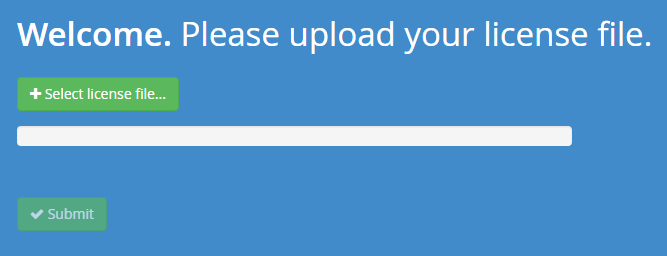
Upload the provided license.dat file using the web interface.
-
If you have not received a license file, contact your Block 64 Customer Success Specialist before continuing.
6. Create Appliance Web Credentials
-
Create the administrative credentials for the BlockBox web interface.
-
Store these credentials securely.
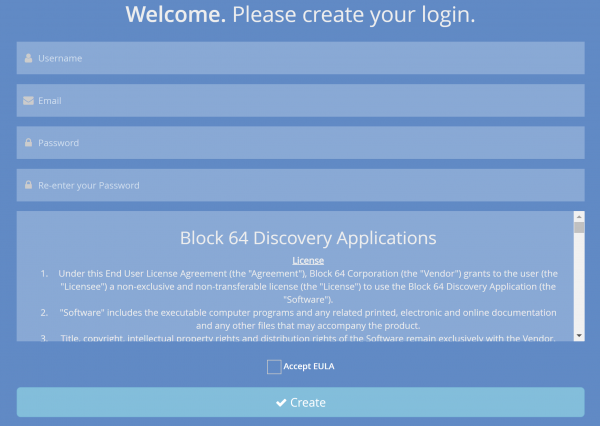
- Use them to authenticate when prompted.
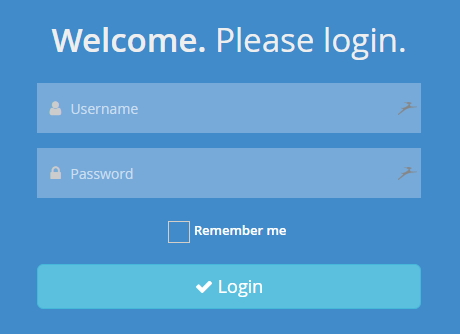
After login, you will be redirected to the Configuration Wizard.
7. Configuration Wizard – General Guidance
Data Entry Rule
For most fields in the wizard:
-
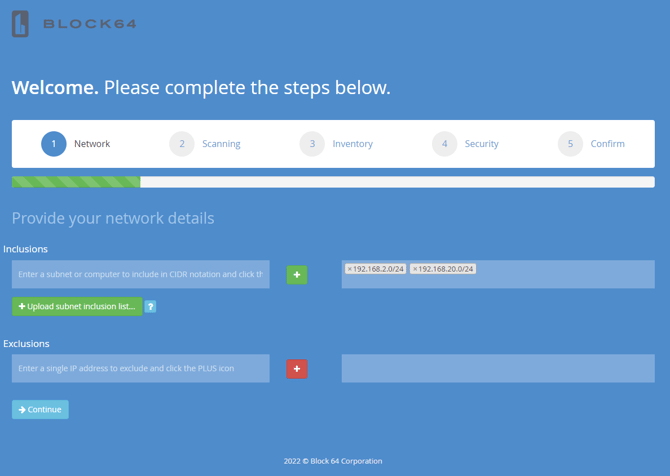
Enter the value in the left-hand field
-
Click the “+” (plus) button
-
Confirm the value appears in the right-hand field
Values are not saved unless they appear on the right.
8. Network Configuration
8.1 Inclusions
-
Add all network subnets that should be scanned.
Best practice:
Use the smallest possible subnets that cover all endpoints.
Avoid large ranges (for example,
/8) unless required.
8.2 IP Exclusions
-
Specify IP addresses that should not be scanned.
-
Typical exclusions include:
-
Sensitive systems
-
Medical or industrial control systems
-
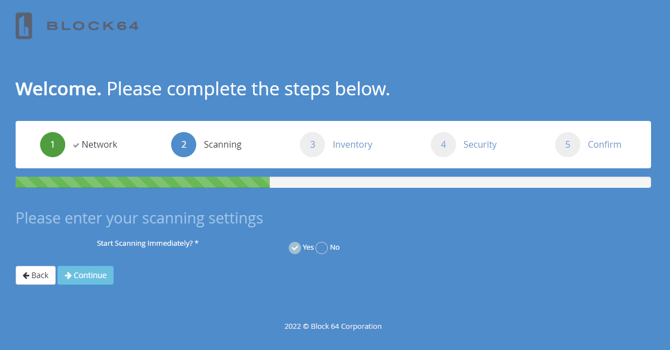
9. Scanning Configuration
Choose one option:
-
Start scanning immediately (recommended)
-
Postpone scanning to configure additional settings first
10. Inventory Settings
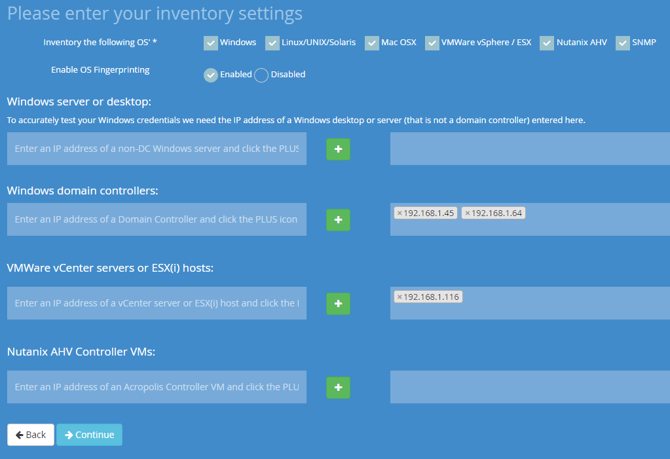
Select which platforms should be inventoried:
-
Windows
-
Linux / UNIX / Solaris
-
macOS
-
VMware
-
Nutanix
-
SNMP Devices
OS Fingerprinting (Optional)
-
Improves accuracy by identifying devices before full inventory.
-
Recommended for most networks.
-
Can be disabled for fragile environments.

11. Platform Validation Inputs
Windows Server or Desktop
-
Enter the IP of a non-domain controller system.
-
Used to validate Windows credentials.
Domain Controllers
-
Enter IP addresses of domain controllers.
-
Prefer controllers closest to the root of the AD forest.
VMware & Nutanix
-
Enter the vCenter Server IP for VMware.
-
If no vCenter exists, enter individual host IPs.
-
For Nutanix, enter Controller VM IP addresses.
12. Security Configuration
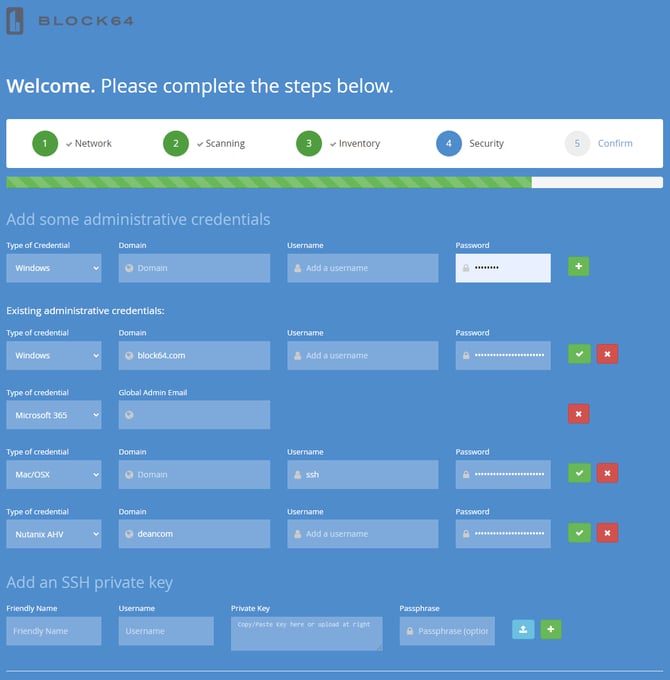
This step is essential. These credentials are used by the appliance to access devices and collect inventory data. Incorrect or outdated credentials may prevent successful discovery and can result in incomplete or missing inventory information.
12.1 Administrative Credentials
Enter credentials for:
-
Windows
-
Linux / UNIX
-
VMware / Nutanix
-
SNMP
Click the “+” button to save each credential.
BlockBox will automatically test credentials where supported.
12.2 Database Credentials
Enter Oracle database credentials if you plan to include Oracle databases in the inventory.
12.3 SNMP Credentials
Enter SNMP credentials if you plan to include SNMP-based network devices in the inventory.-
SNMP v1/v2c: Community string
-
SNMP v3: Username, authentication, encryption details
13. Confirmation & Start
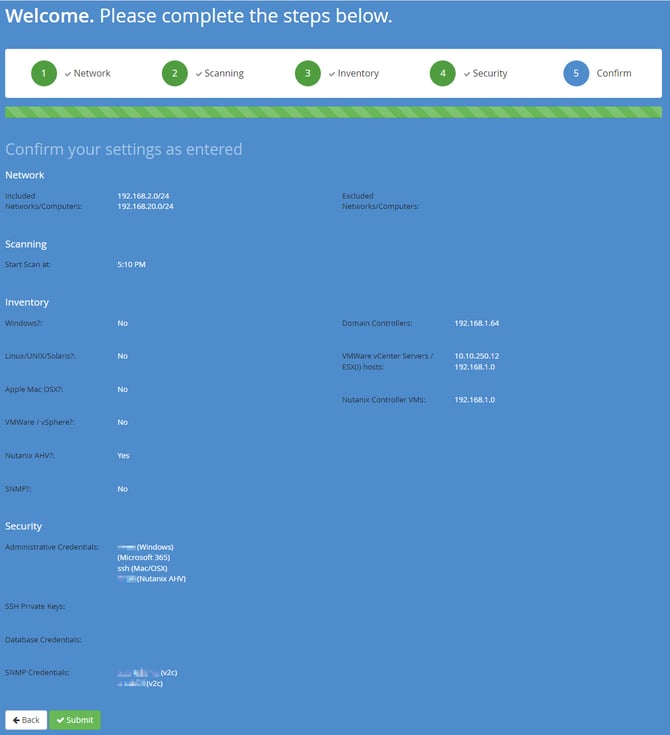
-
Review all configuration settings.
-
Click Submit to complete the wizard.
-
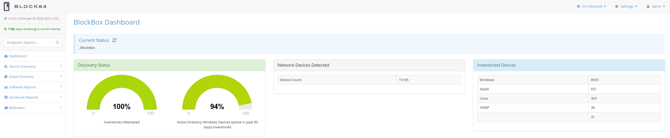
You will be redirected to the Blockbox Dashboard.
14. Monitoring Discovery & Inventory
-
Navigate to: https://<appliance-ip>
-
Within 10–15 minutes, devices should begin appearing in the Discovery Status report.
-
Full inventory completion time depends on:
-
Environment size
-
Network latency
-
Credential coverage
-
15. Troubleshooting During Deployment
If expected data does not appear:
-
Verify network connectivity
-
Confirm credentials are correct and still valid
-
Ensure security tools are not blocking communication
-
Cross-check configuration against the Technical Pre-Work & Prerequisites article
If needed, open a support ticket including:
-
Configuration Settings
-
Inventory Scope
-
Description of observed behavior
Need Help?
If you encounter any issues or have questions, review our troubleshooting articles or contact our Customer Success team for further assistance.